




Have you ever struggled to keep track of financial records efficiently? Many businesses and individuals face challenges managing income, expenses, and budgets without a reliable system. Excel offers a versatile solution, enabling precise calculations, organized data management, and customizable reporting that simplifies accounting tasks.
In this blog, using Excel for accounting will be explored in detail, a skill set that is currently in high demand for those seeking accounting jobs in Nepal. Readers will learn how to set up spreadsheets, track transactions, apply formulas for accuracy, and analyze financial data effectively. This guide provides step-by-step instructions, practical tips, and expert insights to make accounting faster, more accurate, and easier to manage in any professional setting.
In this blog
Why Excel is Essential for Accounting?
Accounting is essential for accounting because it provides a structured, reliable, and efficient way to record, track, and analyze financial data. Excel acts as a flexible tool that can handle everything from simple bookkeeping to complex financial calculations. It allows professionals to maintain accuracy, automate repetitive tasks, and generate clear reports that support decision-making. With proper setup, Excel transforms raw numbers into actionable insights, helping businesses monitor performance and plan strategically.
Advantages of Using Excel for Financial Management
- Simplifies tracking of income, expenses, and cash flow
- Enables automated calculations using formulas and functions
- Offers customizable templates for ledgers, budgets, and statements
- Provides visualization tools such as charts and graphs
- Supports scenario analysis and financial forecasting
- Enhances accuracy and reduces manual errors
- Easy integration with other accounting or reporting tools
Key Excel Features for Accounting
Excel offers a wide range of features that streamline financial tasks, making the mastery of the software one of the most essential skills needed to be an accountant. Its ability to automate calculations, organize large datasets, and create meaningful reports helps professionals focus on high-level analysis rather than manual entry. Features such as formulas, PivotTables, and visualization tools enable accountants to monitor financial performance, identify errors, and present data in a clear, actionable manner.
Formulas and Functions Every Accountant Should Know
Formulas form the backbone of Excel's accounting capabilities. Functions like SUM, SUMIF, and SUMIFS allow quick calculation of totals across categories or conditions. VLOOKUP, HLOOKUP, and INDEX-MATCH help locate specific data points within large datasets efficiently. Conditional statements such as IF and nested IF enable automated decision-making within spreadsheets. Learning these functions reduces errors, saves time, and increases productivity, allowing accountants to handle complex data without repetitive manual work.
Using PivotTables to Analyze Financial Data
PivotTables transform raw financial data into organized, summarized reports in seconds. They allow grouping, filtering, and sorting of transactions to highlight trends or anomalies. Accountants can quickly generate summaries of expenses, revenue, or balances by category, department, or period. PivotTables also support drill-down analysis, helping identify detailed records behind aggregated totals. This feature is especially useful for monthly reconciliations, budget tracking, and performance reporting, making data interpretation much simpler.
Charts and Graphs for Visualizing Accounts
Charts and graphs in Excel help present financial information visually, making insights easier to understand. Line charts track trends over time, bar charts compare different categories, and pie charts show proportional relationships. Conditional formatting and dynamic charts allow users to highlight key figures or changes instantly. Visualization enhances decision-making by turning raw numbers into clear, actionable information for management, audits, or presentations. It also improves communication between accountants and stakeholders who may not be familiar with detailed spreadsheets.
How to Set Up an Accounting Spreadsheet in Excel?
You can set up an accounting spreadsheet in Excel by organizing data into clear sections, defining columns for each type of financial information, and applying formulas to automate calculations. Mastering these technical workflows is a critical step for those who aspire to become an accountant in Nepal, where digital proficiency is highly valued by employers. Proper formatting ensures readability, while dashboards and summaries help track key metrics. With careful setup and protection of your data, Excel becomes a powerful tool to manage transactions, monitor budgets, and generate actionable financial insights in any professional setting.
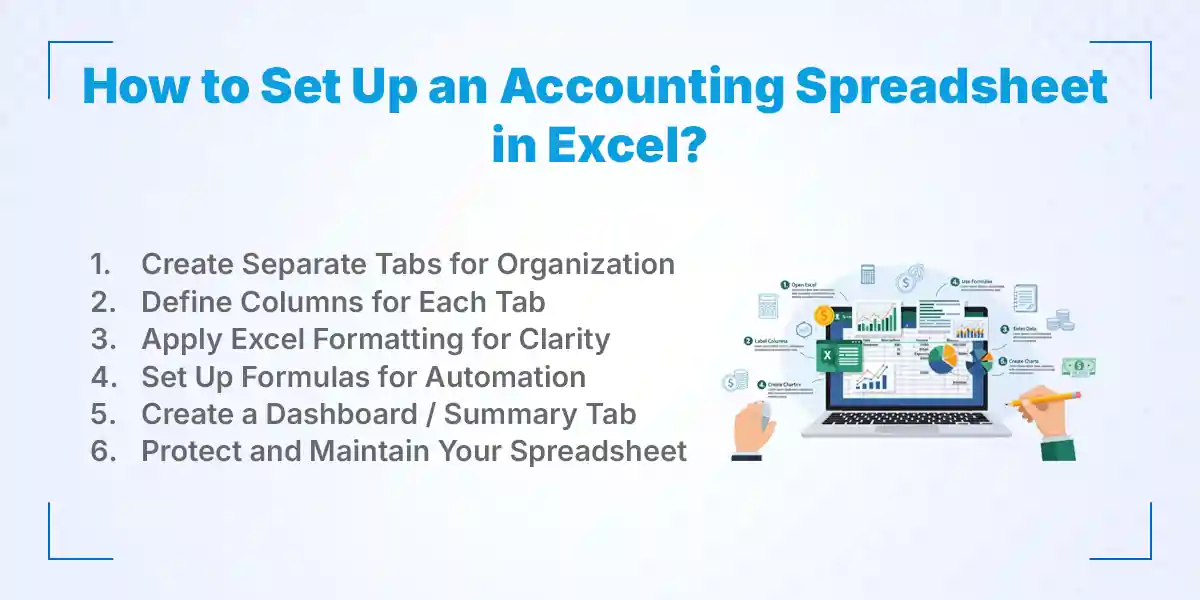
1. Create Separate Tabs for Organization
Organizing your spreadsheet with separate tabs improves clarity and navigation. Typical tabs include General Ledger, Income, Expenses, Accounts Receivable, Accounts Payable, and Financial Summary. Each tab focuses on a specific type of data, reducing clutter and making it easier to track transactions. Proper tab naming and order allow accountants to locate information quickly and maintain a structured workflow across the spreadsheet. Consistently reviewing and updating tab names ensures the structure remains intuitive as the dataset grows.
2. Define Columns for Each Tab
Each tab should have clearly labeled columns that reflect relevant financial details. For example, the General Ledger can include Date, Account Name, Debit, Credit, Balance, and Notes. Income and Expenses tabs may include Date, Category, Amount, Payment Method, and Description. Consistent column structures ensure accurate data entry and make formulas or pivot analysis easier to apply across multiple sheets. Clear column headings also simplify training for new team members or collaborators.
3. Apply Excel Formatting for Clarity
Formatting improves readability and highlights key information. Use bold headers for column titles, freeze the top row for easy scrolling, and apply currency formatting for monetary values. Borders, alternating row colors, and conditional formatting can help spot errors or highlight overdue payments. Proper formatting reduces mistakes and makes large datasets manageable. Additionally, using cell styles consistently creates a professional-looking spreadsheet that is easy to present to stakeholders.
4. Set Up Formulas for Automation
Formulas automate calculations, saving time and reducing errors. SUM and SUMIF formulas total transactions automatically, while IF statements help flag conditions such as unpaid invoices. VLOOKUP or INDEX-MATCH can retrieve data across tabs efficiently. Setting up formulas ensures the spreadsheet updates dynamically as new data is added, keeping balances and summaries accurate. Regularly auditing formulas helps catch errors early and ensures ongoing data reliability.
5. Create a Dashboard / Summary Tab
A dashboard summarizes financial performance in one view. Use PivotTables or SUMIF formulas to calculate totals for income, expenses, net profit, and cash flow. Add charts or graphs to visualize trends over time. Dashboards provide quick insights, helping management or accountants make informed decisions without scrolling through multiple sheets. Including key performance indicators (KPIs) on the dashboard allows instant evaluation of financial health.
6. Protect and Maintain Your Spreadsheet
Protecting sheets prevents accidental edits to critical formulas or headers. Lock important cells, set permissions, and maintain regular backups. Track changes with version control to prevent data loss. Regular maintenance ensures accuracy, reliability, and long-term usability of your accounting spreadsheet. Periodic reviews of data integrity and updating formulas help keep the spreadsheet aligned with evolving business needs.
Recording Transactions in Excel: Step-by-Step Guide
Recording transactions in Excel ensures that every financial event is accurately documented, easily retrievable, and ready for analysis. A structured approach helps maintain consistency, reduces errors, and simplifies reconciliation. By using organized journals, ledgers, and summaries, accountants can track cash flow, monitor expenses, and assess financial health efficiently. Excel’s formulas and formatting tools further automate calculations, making record-keeping faster and more reliable.
1. Journal Entries and Ledger Management
Journal entries record all business transactions in chronological order, including date, account name, debit, and credit amounts. Each entry should reference supporting documentation, such as invoices or receipts, for transparency. After recording, transactions are posted to the general ledger, categorizing them under relevant accounts like sales, expenses, or assets. Proper ledger management ensures balances remain accurate and provides a clear audit trail. Using Excel formulas, accountants can automatically update account balances as new entries are added, saving time and reducing mistakes.
2. Reconciling Accounts in Excel
Reconciling accounts involves comparing Excel records against bank statements, invoices, or supplier statements to ensure consistency. Any discrepancies, such as missing entries or errors, are identified and corrected immediately. Reconciliation helps verify that cash, receivables, and payables are accurately represented. Excel tools, such as conditional formatting and SUM formulas, make it easier to spot mismatches. Regular reconciliation also prevents financial misstatements and provides confidence in reporting accuracy.
3. Monthly and Annual Financial Summaries
Monthly and annual summaries consolidate all transactions into key reports, such as income statements, balance sheets, and cash flow statements. PivotTables, SUMIF formulas, and charts can automate this aggregation. Summaries provide insights into revenue trends, expense patterns, and net profit margins. Preparing periodic summaries allows businesses to evaluate performance, plan budgets, and make strategic decisions. Excel dashboards can display these metrics visually, offering a quick, high-level view of financial health.
How to Use Excel Formulas for Accounting Accuracy?
To use Excel formulas for accounting accuracy, set up automated calculations that reduce manual errors and ensure consistent financial reporting. These formulas help calculate totals and reconcile accounts, effectively covering a significant portion of the daily scope of accounting by streamlining the analysis of large datasets. By applying the right functions, accountants can detect discrepancies, summarize transactions, and generate reliable insights efficiently. Proper use of formulas not only saves time and enhances precision but also makes financial management more professional, allowing practitioners to focus on the strategic aspects of their roles.
1. SUM, SUMIF, and SUMIFS for Financial Totals
SUM formulas allow quick addition of rows or columns of numbers, providing a fast way to calculate totals. SUMIF adds values based on a single condition, such as summing expenses under a specific category. SUMIFS extends this by handling multiple conditions, like totaling sales for a particular month and region. These formulas reduce manual calculation errors and make financial tracking more accurate. Accountants can also use them to create dynamic reports that update automatically as new data is entered.
2. VLOOKUP, HLOOKUP, and INDEX-MATCH for Data Lookup
VLOOKUP and HLOOKUP allow searching for specific information within a table, vertically or horizontally, saving time when matching accounts or invoices. INDEX-MATCH provides more flexibility, enabling lookups with multiple criteria and retrieving data from any column. These functions are essential for reconciling large datasets, finding missing entries, or linking related financial records across different sheets. Using lookup formulas improves efficiency, reduces errors, and ensures data consistency throughout accounting spreadsheets.
3. IF and Conditional Formatting for Error Detection
IF formulas enable conditional calculations, such as flagging overdue payments or categorizing expenses automatically. Nested IF statements handle multiple scenarios, increasing the spreadsheet’s adaptability. Conditional formatting visually highlights errors, duplicates, or unusual values, making discrepancies easier to identify. Together, these tools allow accountants to spot mistakes quickly and maintain high accuracy. They also enhance the readability of spreadsheets and help prevent reporting errors before data is finalized.
Tips for Efficient Accounting in Excel
Efficient accounting in Excel requires organizing data clearly, protecting sensitive information, and automating repetitive tasks. Streamlined workflows save time, reduce errors, and make financial management more accurate. Applying best practices ensures spreadsheets remain reliable, scalable, and easy to update as business needs evolve. These strategies allow accountants to focus on analysis and decision-making rather than manual data entry.
1. Best Practices for Organizing Data
Organizing data systematically makes spreadsheets easy to navigate and reduces errors. Use separate tabs for income, expenses, ledgers, and summaries. Consistent column headers, standardized formatting, and clearly labeled tables improve readability. Maintaining a logical order for rows and columns helps track transactions efficiently. Regularly reviewing and cleaning outdated or redundant data keeps spreadsheets accurate and professional. Proper organization also simplifies training for new team members and facilitates collaboration.
2. Protecting Your Financial Data with Passwords
Sensitive financial information requires protection to prevent unauthorized access or accidental changes. Excel allows locking specific cells or entire sheets with passwords. Setting permissions restricts editing rights to authorized users. Combined with regular backups, this ensures data integrity and security. Protecting spreadsheets also maintains confidentiality and builds trust with stakeholders. Strong password policies and periodic updates further reduce the risk of data breaches.
3. Using Macros to Automate Repetitive Tasks
Macros automate repetitive tasks, such as generating reports, updating balances, or formatting data. Recording a macro saves the exact steps so they can be executed with a single command. This reduces manual effort, improves efficiency, and minimizes the risk of errors. Macros are especially useful for recurring monthly or quarterly accounting tasks. Proper documentation of macros ensures they remain understandable and maintainable over time. Using macros also allows scaling workflows for larger datasets without extra effort.
Common Mistakes to Avoid When Using Excel for Accounting
Using Excel for accounting can be highly efficient, but common mistakes often compromise accuracy and workflow. Errors such as overcomplicated spreadsheets, ignoring validation rules, or failing to back up files can lead to incorrect financial reports. Maintaining simplicity, applying proper controls, and safeguarding data ensures reliability. Avoiding these pitfalls improves efficiency, reduces errors, and keeps financial management precise and professional.
1. Overcomplicating Spreadsheets
Overcomplicating spreadsheets with unnecessary formulas, excessive tabs, or overly detailed formatting can make data difficult to read and maintain. Complex layouts increase the likelihood of errors and make auditing challenging. Keeping spreadsheets simple, with only essential data and clear structures, enhances usability. Avoiding clutter allows faster navigation and reduces the risk of miscalculations. Well-organized spreadsheets improve collaboration and make updates more manageable over time. Simplifying formulas and consolidating repetitive calculations also reduces maintenance and speeds up processing.
2. Ignoring Data Validation
Ignoring data validation allows incorrect or inconsistent entries, which can compromise financial accuracy. Excel offers tools like drop-down lists, number restrictions, and date validation to enforce correct input. Implementing validation ensures only valid data is entered, preventing errors in calculations and reporting. It also standardizes entries, making it easier to generate summaries and pivot reports. Regularly reviewing validation rules ensures they remain relevant as data or accounting practices change. Data validation also improves accountability, as users are guided to enter correct information consistently.
3. Failing to Back Up Files
Failing to back up accounting files risks permanent loss of critical financial information due to accidental deletion, corruption, or system failures. Regular backups, both locally and on cloud storage, protect against data loss. Version control allows recovery of previous iterations if errors occur. Automated backup schedules reduce reliance on manual processes. Maintaining secure and accessible backups ensures continuity of accounting operations and provides peace of mind. Periodic testing of backup files ensures data can be restored successfully when needed.
Where Can You Learn Excel for Accounting in Nepal?
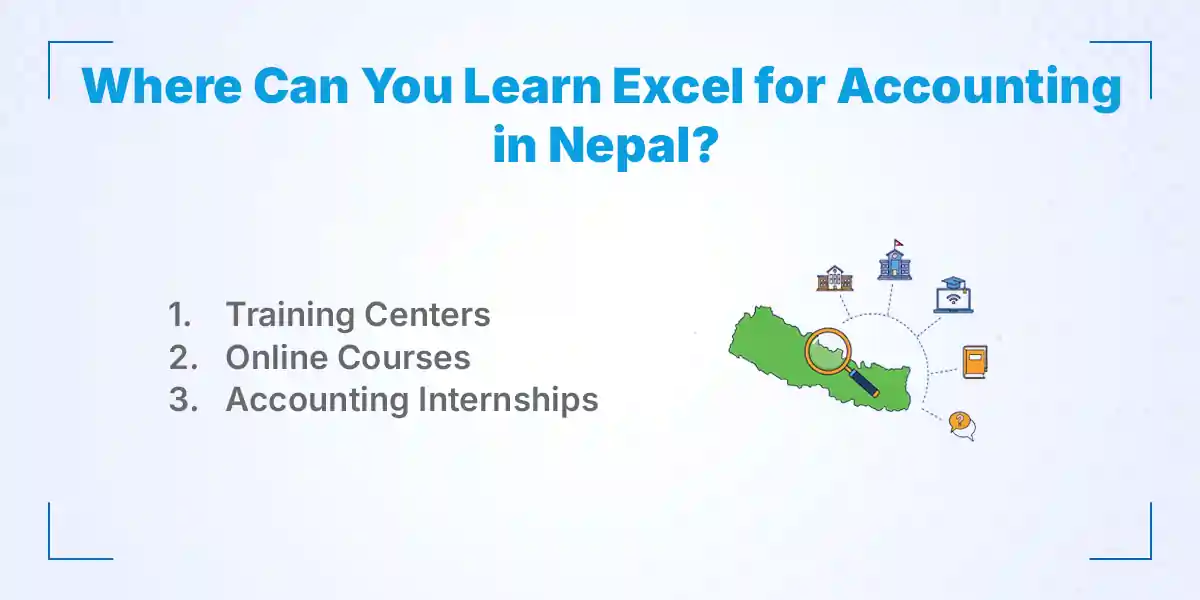
You can learn Excel for accounting in Nepal at training centers like Kumari Job, which offer practical programs combining theory with hands-on practice. Kumari Job provides structured courses focused on financial management, spreadsheet setup, formulas, and reporting. These programs help students and professionals develop essential accounting skills using Excel efficiently. By learning in a guided environment, learners gain confidence in handling real-world accounting tasks and preparing accurate financial records.
1. Training Centers
Training centers such as Kumari Job offer advanced accounting training through dedicated Excel courses, covering everything from basic spreadsheet navigation to complex financial analysis. Students receive practical assignments, live demonstrations, and expert guidance to ensure they master key functions and formulas. The courses also focus on real-world accounting applications, including ledger management, budgeting, and reporting. Learning in a classroom environment allows immediate feedback and clarification of doubts. Kumari Job emphasizes skill development that is directly applicable to workplace requirements.
2. Online Courses
Online courses provide flexibility to learn Excel for accounting at your own pace. Video tutorials, interactive exercises, and downloadable practice files allow learners to practice formulas, PivotTables, and financial analysis techniques from home. Many online programs also include assessments and certification upon completion. This approach suits working professionals or students who need to balance learning with other commitments. Online learning complements in-person training by reinforcing concepts and providing additional practice opportunities.
3. Accounting Internships
Accounting internships in Nepal offer hands-on experience using Excel for real-world financial tasks. Interns get exposure to recording transactions, reconciling accounts, and preparing reports under supervision, which perfectly complements the skills gained during job-oriented accounting training. These opportunities help learners apply theoretical knowledge from courses in practical settings while developing soft skills like attention to detail and data management efficiency. Combining real-world internships with structured, practical training accelerates proficiency in Excel and significantly enhances employability in the competitive accounting sector.
Conclusion
Using Excel for accounting is an essential skill for students, professionals, and businesses seeking accuracy, efficiency, and organized financial management. From setting up structured spreadsheets to applying formulas, PivotTables, and dashboards, Excel simplifies complex accounting tasks and minimizes errors. Mastering these tools allows users to track income, expenses, and budgets effectively while generating clear reports for analysis and decision-making.
By following best practices, avoiding common mistakes, and leveraging training programs like Kumari Job, learners can build confidence in real-world accounting applications. Consistent practice, structured learning, and automation strategies make accounting faster, more accurate, and highly professional.
Frequently Asked Questions
Submit your comments

Get Our App On



What is the Public Relations Officer Salary in Nepal
VIEW DETAILS
What Is the Salary of a Ticketing Officer in Nepal?
VIEW DETAILS
What Is the Salary of a Travel Consultant in Nepal?
VIEW DETAILS
How to Become an Auditor in Nepal
VIEW DETAILS


Loading Comments...